Prosol

Excellence in blogging.

Showing posts with label download. Show all posts

Monday, 6 December 2021

How to download YouTube videos on Android

Learning how to download YouTube videos can be very useful in certain circumstances, such as when you're traveling. There are several good reasons why you might want to download videos from YouTube, such as if you're not going to have an internet connection for a while and want to save them for offline viewing. 

Published from Blogger Prime Android App
Downloading YouTube videos with an Android app from the Google Play store is going to be impossible, because Google prohibits such tools. However, you can get a YouTube downloader on your phone or tablet by installing a APK file from outside the Play store, like our top suggestion Videoder or TubeMate. Here's how to use it.

Downloading youtube video through Videoder

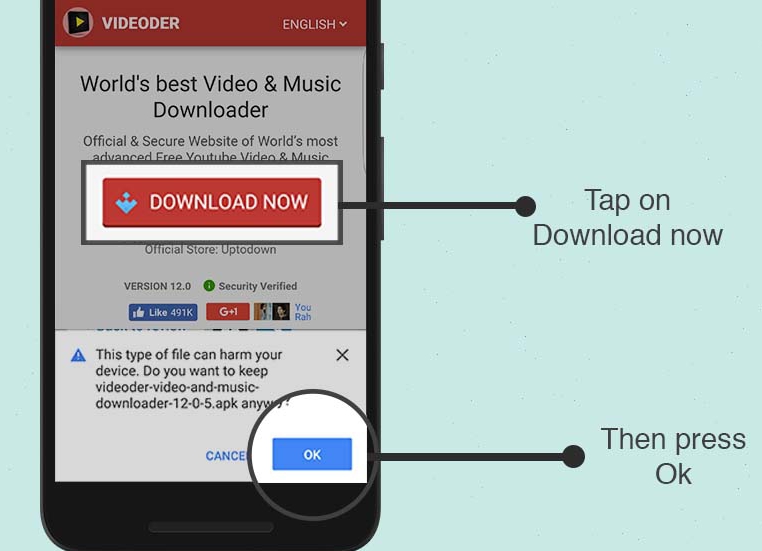
Step 1
Download Videoder Apk. If your browser warns you on downloading apk outside playstore, ignore it as you are downloading from the official Videoder site.
Published from Blogger Prime Android App
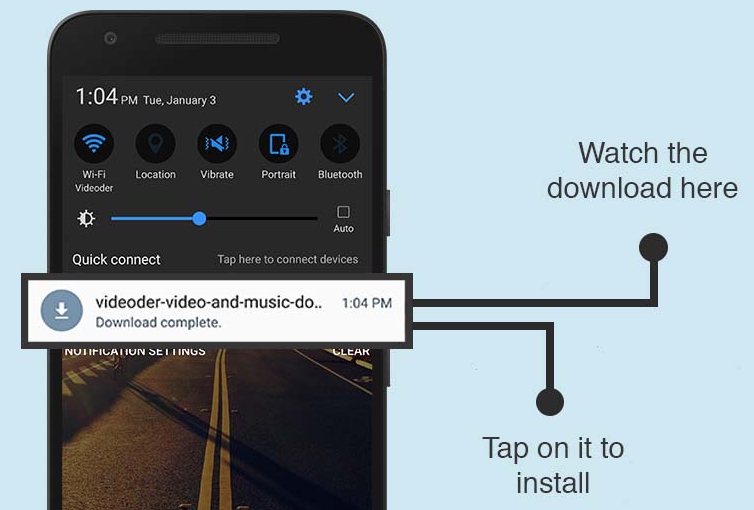
Step 2
Watch the download in the notifications panel. Once the download is complete tap on the completed notification to install .
Published from Blogger Prime Android App
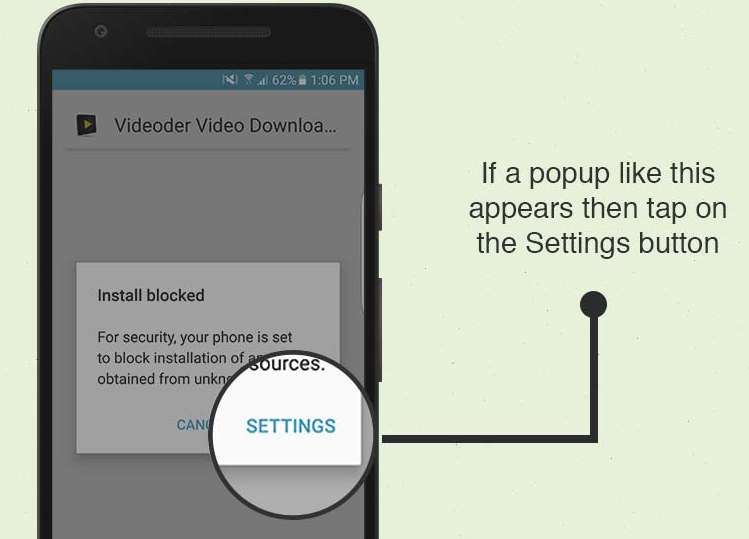
Step 3
Your settings may not allow you to install apk outside Play Store. If you see the popup as shown below, tap on SETTINGS and follow next instructions.
Published from Blogger Prime Android App
Installation Completed? Now go on and download all your favourite songs and Videos. In case of any issue report it to us at support@videoder.com

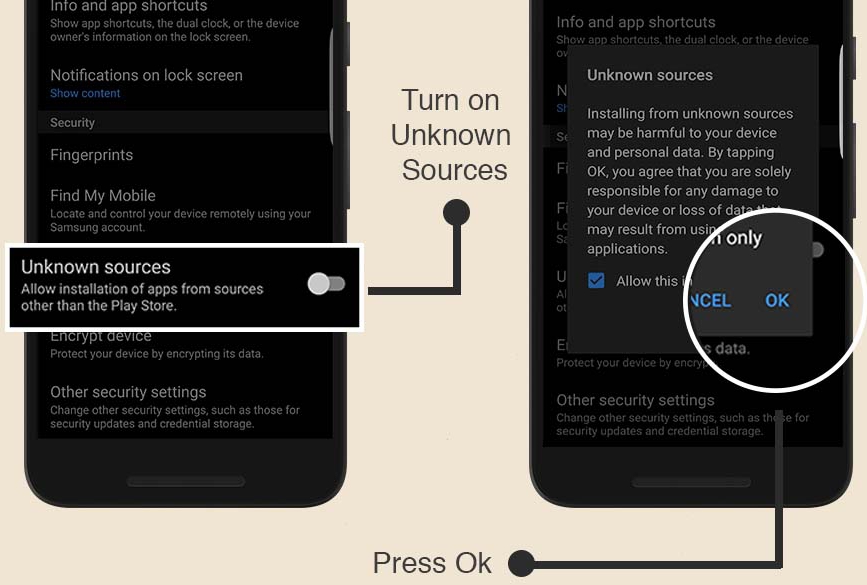
Step 4
Go to ' Settings -> Security -> Unknown Sources ' and turn it on.
Published from Blogger Prime Android App
Step 5
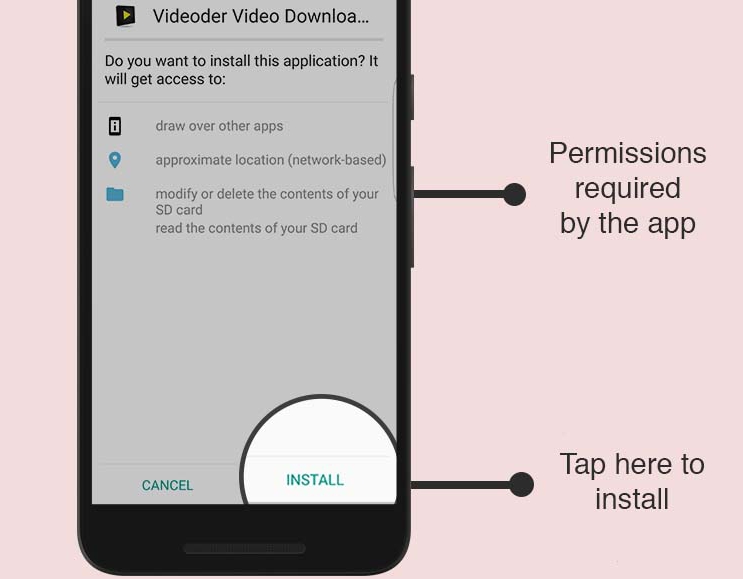
Go back to Downloads and open the downloaded and complete the installation. Do not forget to turn off Unknown Sources once the installation is completed.
Published from Blogger Prime Android App
If you face any problem then do not hesitate to ask in below comment section. Enjoy!!!

Monday, 29 November 2021

Download Audio file of the Holy Quran In Urdu Language

Quran in Urdu language Only

Reciting Holy Quran on regular basis is very much possible with the availability of online Audio Quran facility. 


Muslims all over the world can facilitate from this amazing service that can help you to listen to Holy Quran and interpret its meaning with the support of Urdu translations.


Click on the download and get complete Quran in Urdu tarjuma only. Credit goes to my Muslim brother who did this. Please pray for all those who participated in its spreading.

Tuesday, 12 February 2019

Install Internet Download Manager (IDM) for free

Hello Everyone. I am going to tell you, how to download and install IDM for free and it will work with out any problem. I will provide the link Downloader IDM(Internet Download Manager V6.23 Build 17).


Please follow up the following steps.

1.Download Files from the below link
   Click Here
2.Extract it.
3.Install IDM from .exe file.
4.Depending on 32 bit or 64 bit install respective patch  in the same folder where you have installed
   IDM.

That's all.
If you want to check whether your's is full version or not
You can check in the registration tab of IDM

NOTE: If you update full version which replaces Cracked file and you lose full version.So you should not update IDM there won't be more changes in updated version


Thank You Guys. Comment below if you have any problem.

Tuesday, 11 December 2018

Remove "CSE Google" Redirect

Removal of Cse.google.com redirect

Cse.google.com is a legitimate search engine, however there are plenty of browser hijackers which will redirect the users search queries to Google Search. This is most likely done to generate advertising revenue by using Cse.google.com for its search results.

Let’s be clear about something, Cse.google.com is not a browser hijacker and is not malicious in any way. However, occasionally, malware will explicitly mess with your web browser settings and Cse.google.com will be displayed. Cyber criminals use Cse.google.com to generate revenue from each search you perform.

When the Cse.google.com browser hijacker is installed on a PC, common symptoms include:


  • Changing the web browser’s default homepage to Cse.google.com
  • Changing the browser’s search provider, built-in search box to Cse.google.com
  • Ability to modify the ‘new tab’ functionality to launch the modified search portal page
  • Loads into the web browser via an extension or add-on
  • Web Browser shortcuts are hijacked to redirect to Cse.google.com
The below instructions are for Windows users;

To remove the Unwanted Cse.google.com redirect, follow these steps:

STEP 1: Uninstall the malicious programs from Windows
STEP 2: Use Malwarebytes to remove the Cse.google.com redirect

Step 1: Uninstall the malicious programs from Windows

Known malicious programs: Search Module, Search Module Plus or Google.Vc, OtherSearches, YeaDesktop, Wajam, 1.0.0.1, DNS Unlocker, Cinema Plus, Price Minus, SalesPlus, New Player, MediaVideosPlayers, Browsers_Apps_Pro, PriceLEess, Pic Enhance, Sm23mS, Salus, Network System Driver, SS8, Save Daily Deals, Word Proser, Desktop Temperature Monitor, CloudScout Parental Control, Savefier, Savepass, HostSecurePlugin, CheckMeUp or HD-V2.2.

The malicious program may have a different name on your computer. If you cannot find any malicious programs on your PC, you can proceed with the next step.

Step 2: Use Malwarebytes to remove the Cse.google.com redirect


1: You can download Malwarebytes by clicking the below AdwCleaner
     AdwCleaner
I have provided the link of AdwCleaner but you have to install its latest version.

2:  Double-click on the Malwarebytes setup file
When Malwarebytes has finished downloading, double-click on the mb3-setup-consumer-x.x.x.xxxx.exe file to install Malwarebytes on your PC. In most cases, downloaded files are saved to the Downloads folder.

3: Follow the on-screen prompts to install Malwarebytes
When the Malwarebytes installation begins, you will see the Malwarebytes Setup Wizard which will guide you through the installation process. To install Malwarebytes on your PC, click on the “Agree and Install” button.

4: Click on “Scan Now”
Once installed, Malwarebytes will automatically start and update the antivirus database. To perform a system scan, click on the “Scan Now” button.

5: Wait for the Malwarebytes scan to complete
Malwarebytes will now start scanning your computer for adware and other malicious programs. This process can take a few minutes, so we suggest you do something else and periodically check on the status of the scan to see when it is finished.

6: Click on “Quarantine Selected”
When the scan has completed, you will be presented with a screen showing the malware infections that Malwarebytes has detected. To remove the malicious programs that Malwarebytes has found, click on the “Quarantine Selected” button or Clean button.

7: Reboot your computer
Malwarebytes will now remove all the malicious files and registry keys that it has found. To complete the malware removal process, Malwarebytes may ask you to restart your computer. When the malware removal process is complete, you can close Malwarebytes and continue with the rest of the instructions.

loading...